Search
App User Guide
Creating your account
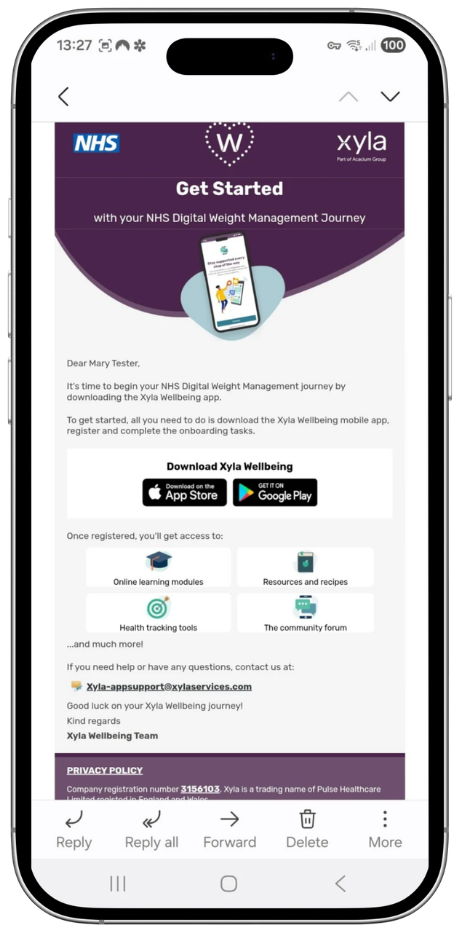
Look out for an email containing details on how to create you account. There are three simple steps:
- Download the Xyla Wellbeing app in the relevant app store for your device.
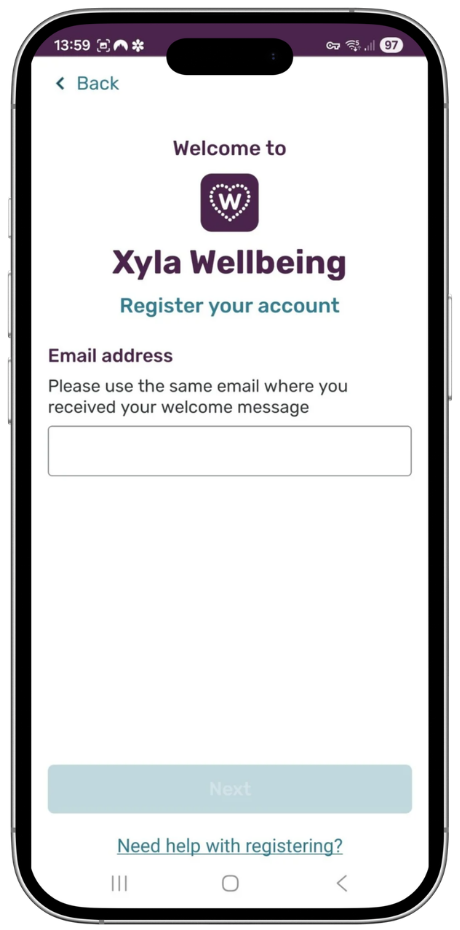
- Open the app and tap “Register”
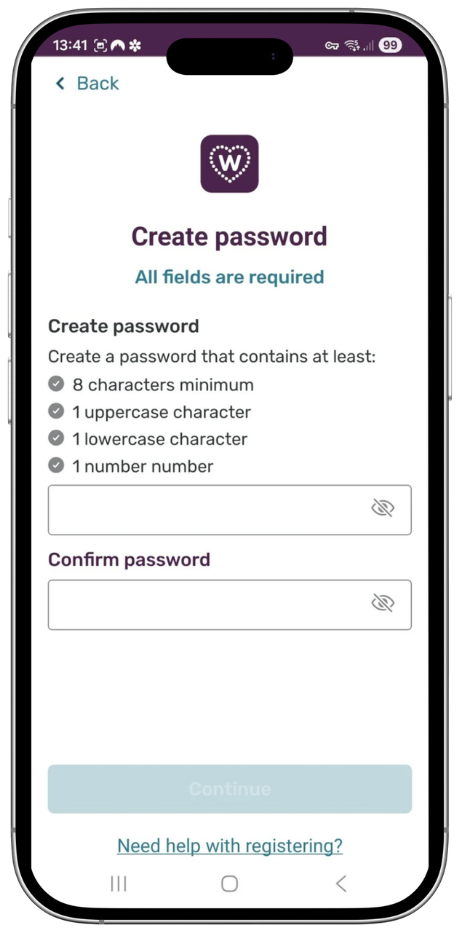
- Follow the on-screen instructions to register your account, confirm your identity and create your password.
Onboarding
After registration, you will need to complete the onboarding process. This allows us to find out more about you and gives you an overview of the programme you are joining.
Please follow the on‑screen instructions to complete onboarding in the app, and once that is done, you will be taken to the ‘Home’ screen.

Home & the My Tasks Carousel
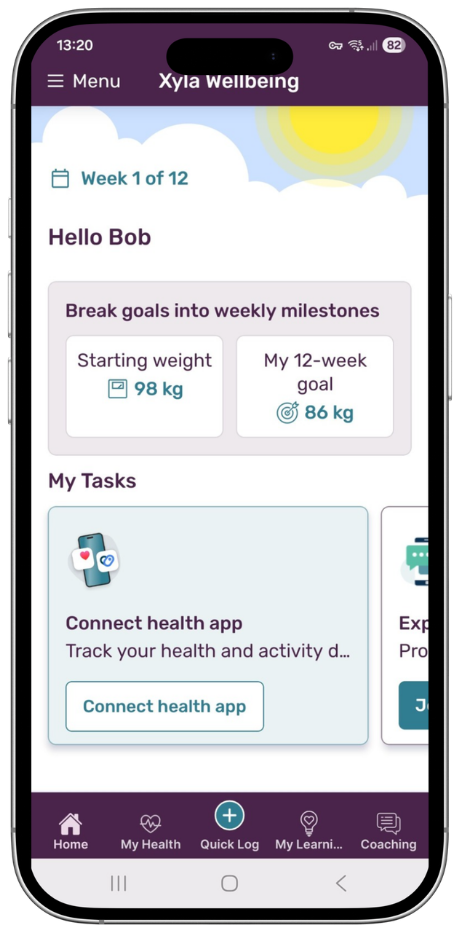
The Home screen is usually the landing page when you open the app, and it provides easy access to all of the app’s features. This is also where you will find ‘My Tasks’.
The ‘My Tasks’ list contains the tasks for you to complete for that week of your programme, and it will refresh as you complete tasks and progress through the programme. To complete a task in the carousel, tap on the task to go to the relevant page in the app.
You can also see which week of the programme you are on at the top left of the Home screen.
Navigation
From the Home screen, you will be able to navigate and access all areas of the app.
The bar at the bottom of the Home screen provides quick access to key areas of the app: My Health, My Learning, and Coaching. Each of these buttons opens additional screens and functionality, which are described in the following sections.
In the top right‑hand corner, you will find the in‑app notifications, which will alert you to reminders and updates. In the top left‑hand corner, you will see the Menu button. This opens a list of other areas of the app that you can navigate to, including the guided tour, support contact details, and various additional sections of the app to explore. You will also be able to log out of the app through the Menu button.
My Health
In the My Health section you can log your weight, select a habit to track, review and enter challenges, log and track your mood and see achievement badges you have earned.
Weight Loss Goal and Weight Capture
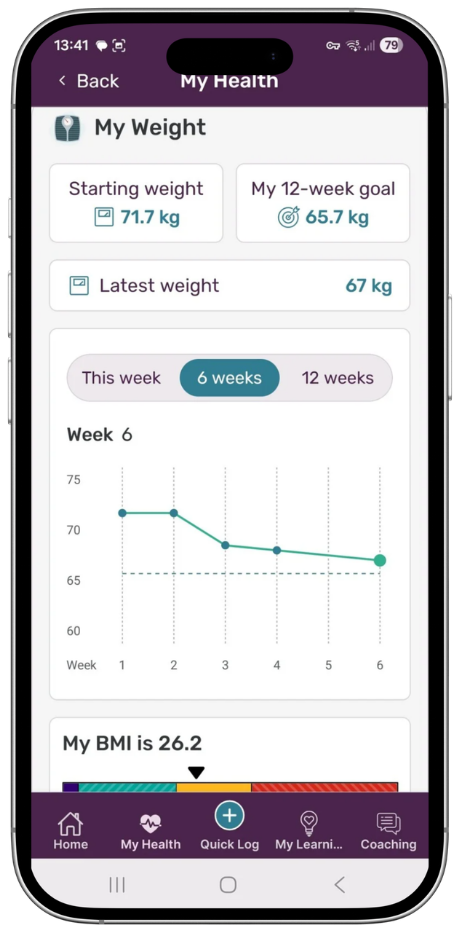
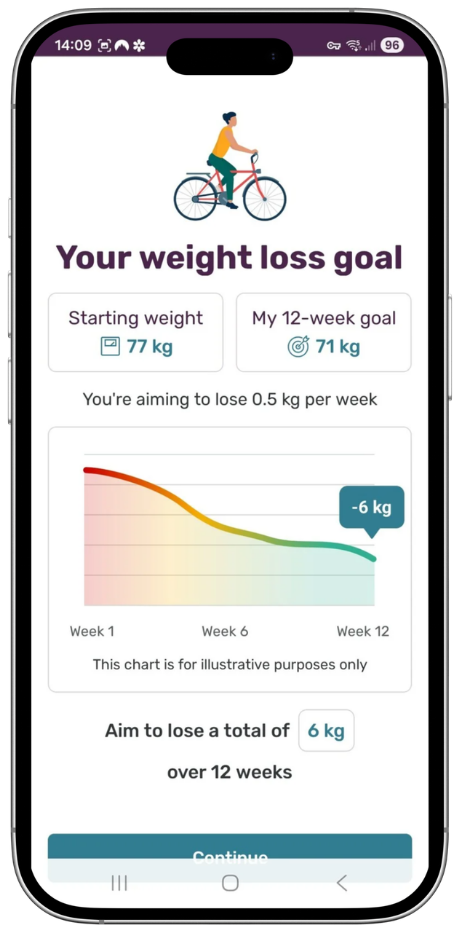
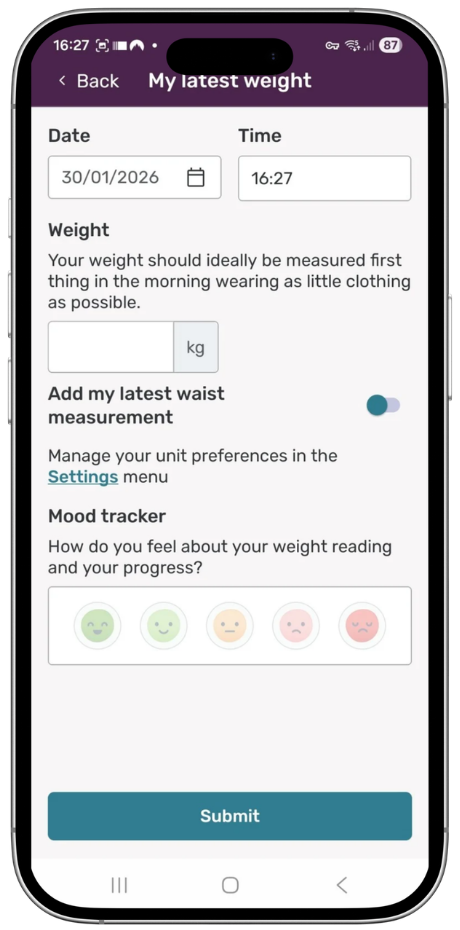
Monitor your progress against the weight‑loss goal you set during the onboarding process on the My Weight home page. You can capture your weight weekly (or more frequently if you wish) by entering it in the text box. Your chosen metric (kg or stone and pounds) will be displayed automatically, but you can change this in the main menu if you prefer. You can also access the weight‑capture screen via the ‘Quick Log’ button on the home screen.
A waist measurement is optional (toggle the switch to open the waist‑measurement text box), and you can choose a smiley face to represent how you feel about your weight at that moment. You can access a history of your recorded weights by scrolling down the page and selecting the appropriate button.
Habits
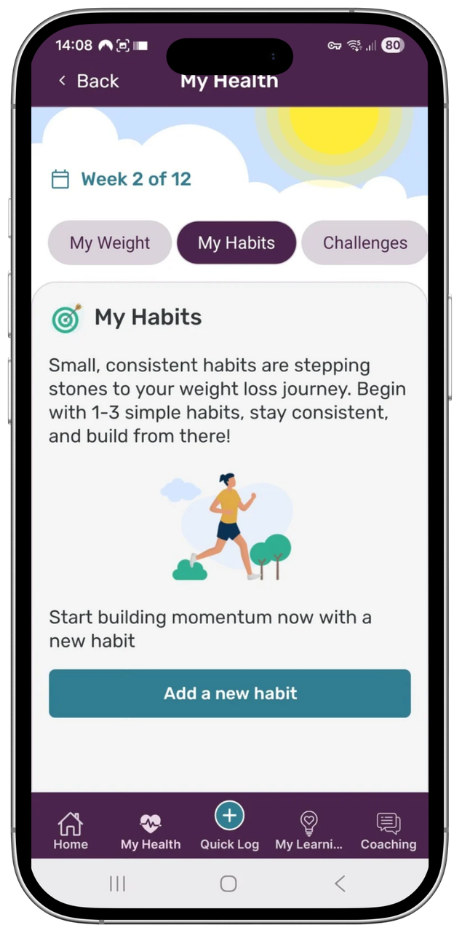
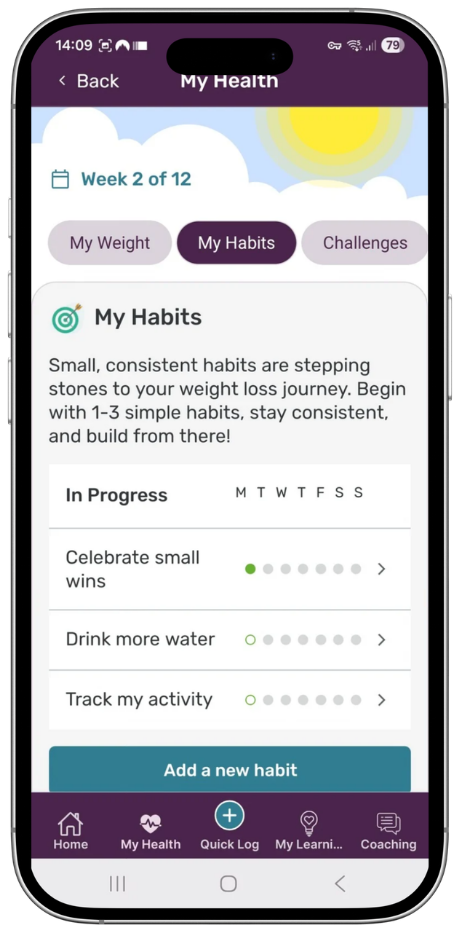
You can select from pre-defined habits or create your own. Tracking how you stick to small, consistent habits can help you achieve longer-term health goals.
Challenges
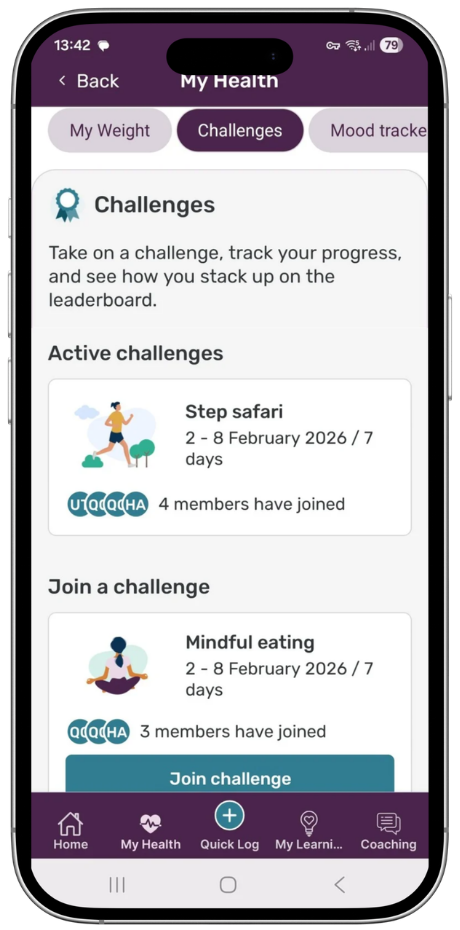
There are weekly Steps and Meditation challenges that you can choose to join. These track the number of steps you walk and the minutes you spend listening to the suggested meditations. You are placed in leagues according to your activity level and earn badges based on where you finish each week. You can also encourage fellow participants along the way.
Mood Tracker
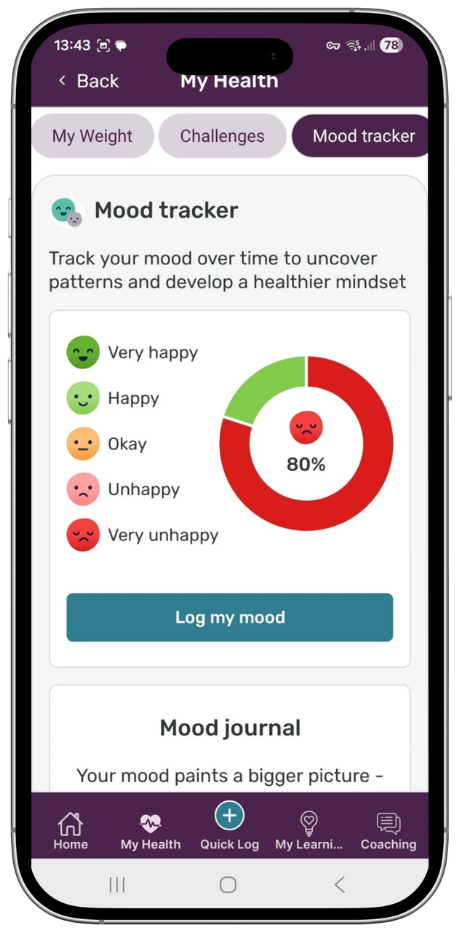
You can also keep track of your mood and use the ‘Journal’ function to make notes about how you feel during your time on the programme. Reflecting on how you felt at different stages of your journey can be useful in understanding how your mood may influence your adoption of healthier behaviours.
Achievements
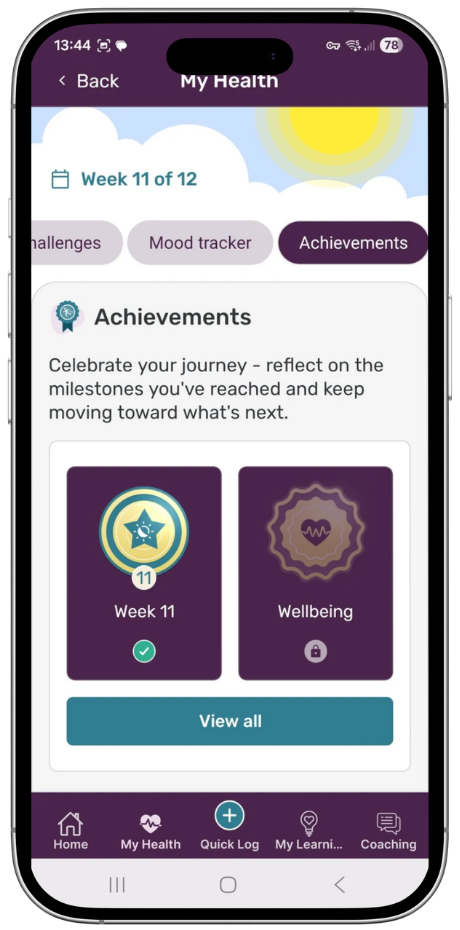
You earn badges as you use the app and perform various functions, such as adding your weight regularly, completing online learning modules, posting in the community, and so on.
My Learning
My Learning takes you to the online learning modules, resources and recipes and any bookmarked favourites you create.
Online Learning
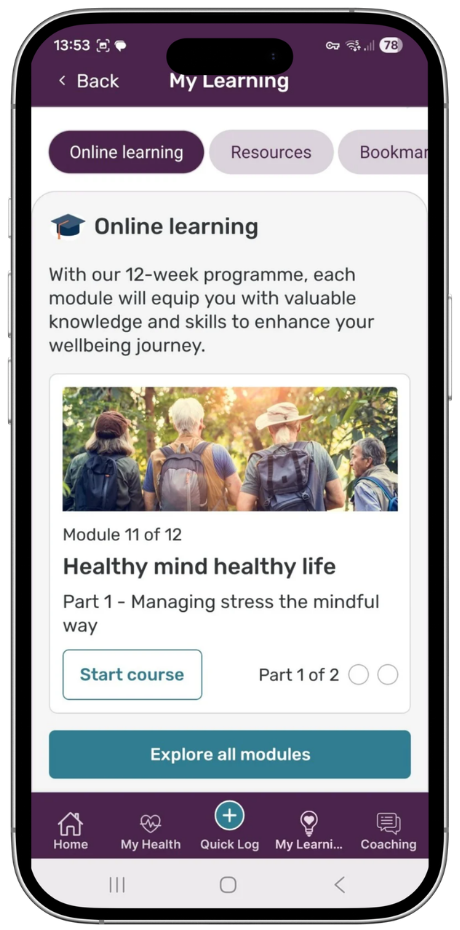
Learn more to support your wellbeing journey with our twelve online learning modules. Your progress through the modules will be tracked, so you can pick up right where you left off each time you return to this area of the app. We suggest completing module 1 in week 1, module 2 in week 2, and so on, but you can access any module at any time and also recap previously completed modules.
Resources
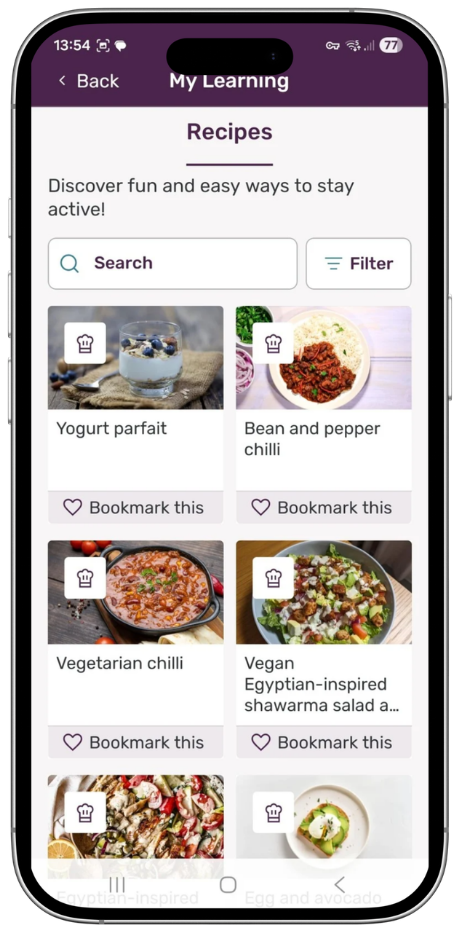
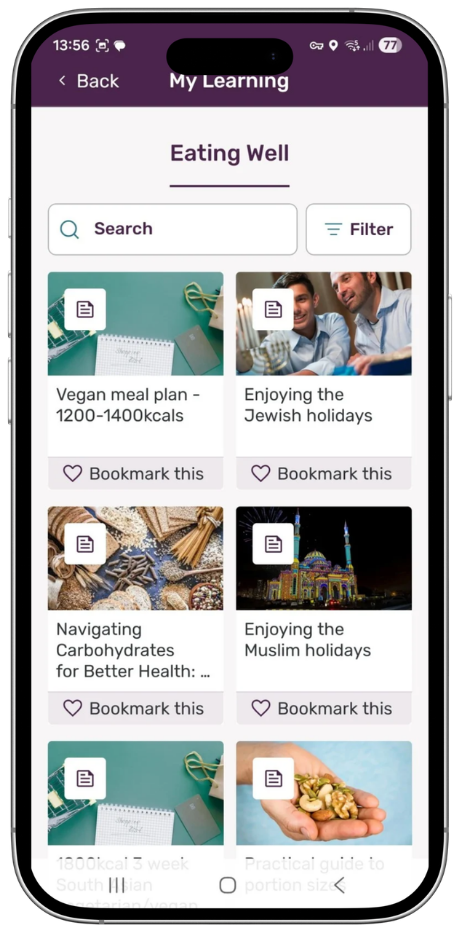
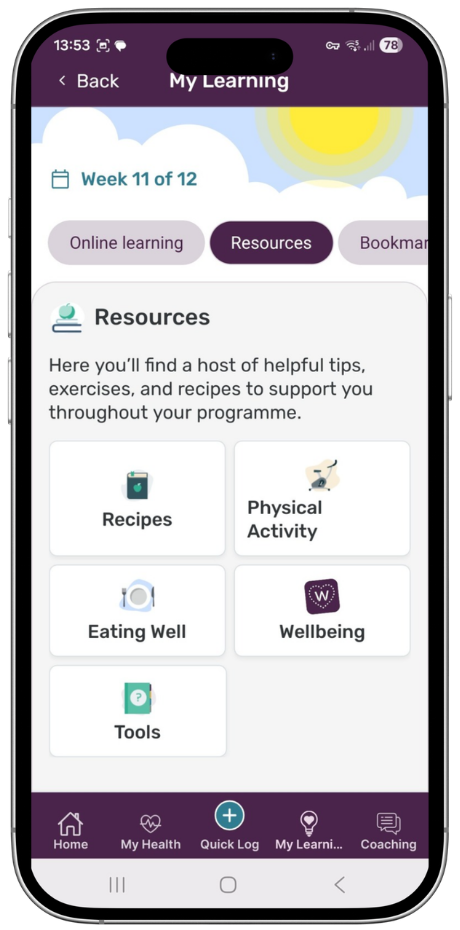
The Resources section is our library of recipes, articles, and external links to help you on your wellbeing journey. Resources are split into the following categories:
- Recipes: Tasty recipes from our dieticians. You can filter these by allergens or dietary preferences.
- Physical Activity: Exercises and helpful fitness tips
- Eating Well: Advice about healthy eating
- Tools: Helpful guides and information about your programme
- Wellbeing: Articles on a range of topics to support your overall wellbeing.
Mark your favourite resources using the heart icon to collect them in your Favourites section for easy access. You can un‑favourite a resource by tapping the heart again.
Coaching
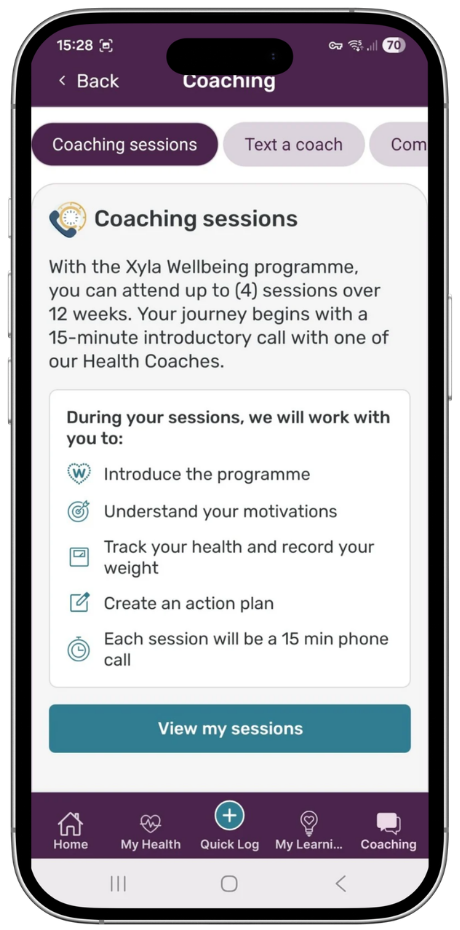
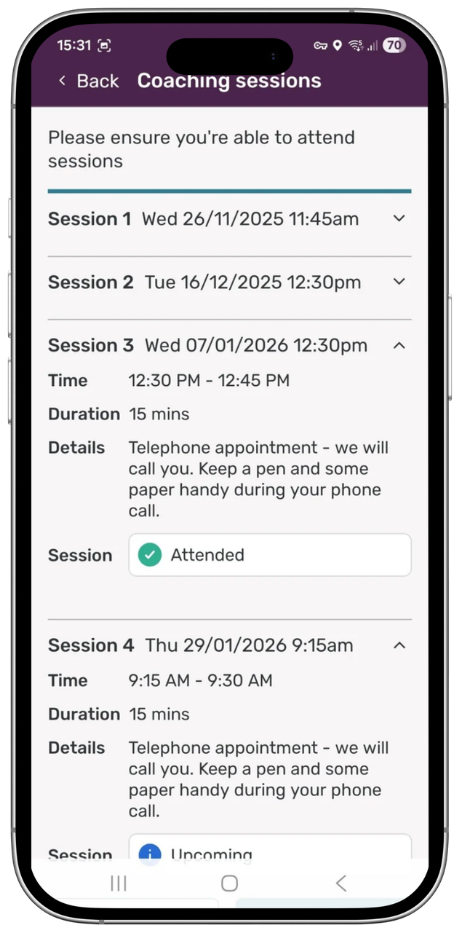
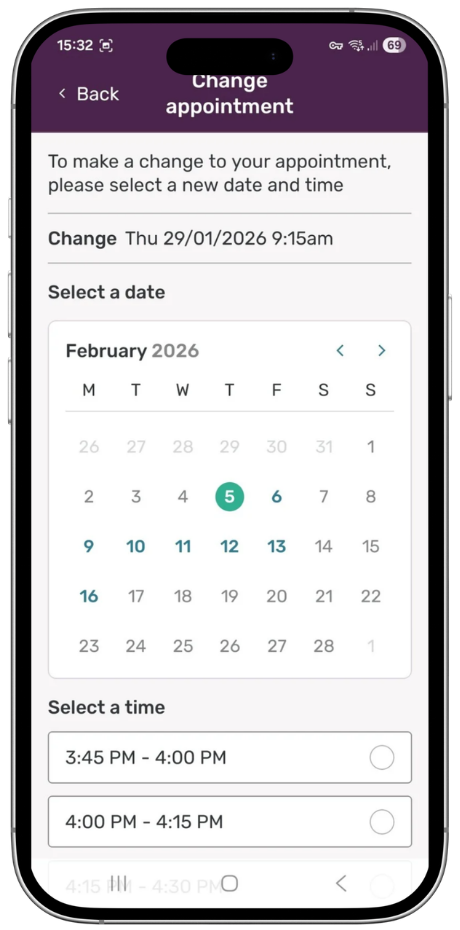
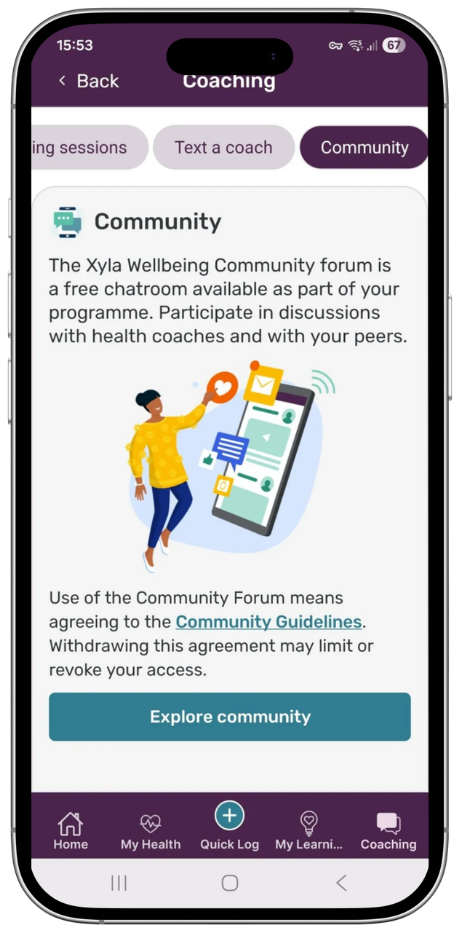
This section of the app takes you to the features where you can interact with our health coaches, book or reschedule your coaching sessions, and communicate with your coach via in‑app text messaging. You can also access the Community forum, where you can interact with other people going through the programme.
Coaching sessions
Text a coach
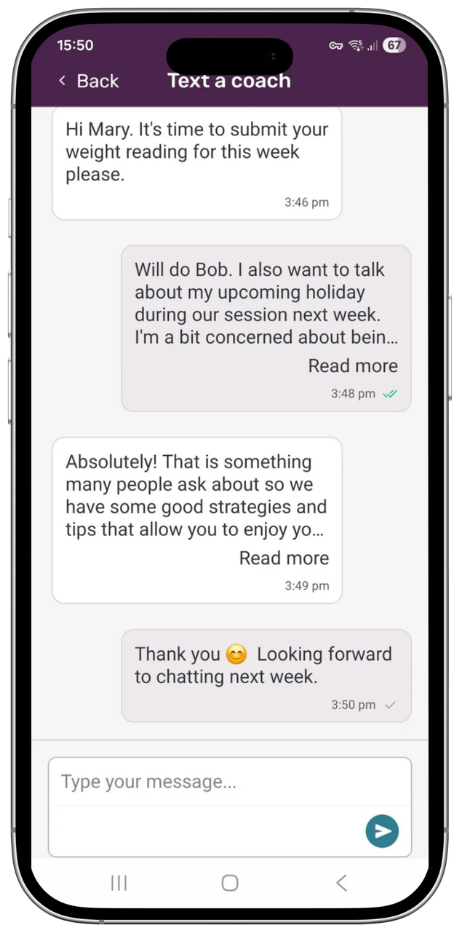
Have a question you want to discuss with your coach at your next session? You can send and receive text messages with your health coach using the secure messaging function within the Xyla Wellbeing app.
Community
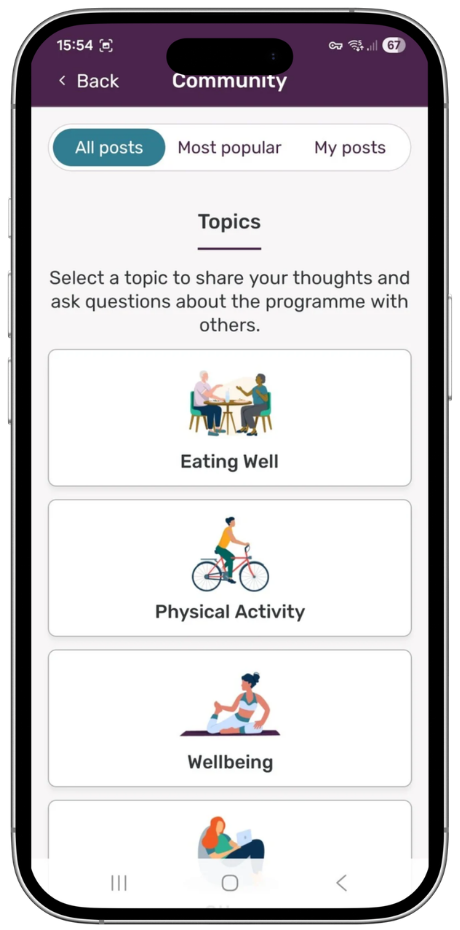
Interact with other people on your programme in our Community forum, which you can sign up for during the onboarding process. Posts are categorised to make it easier for you to find topics of interest. You will be able to create new posts to share your experiences and follow discussions that interest you. You can access these from the ‘Following’ tab, and you can click on posts to read more, like them, or even reply.
Settings
Various Settings can be viewed or changed via the main Menu.
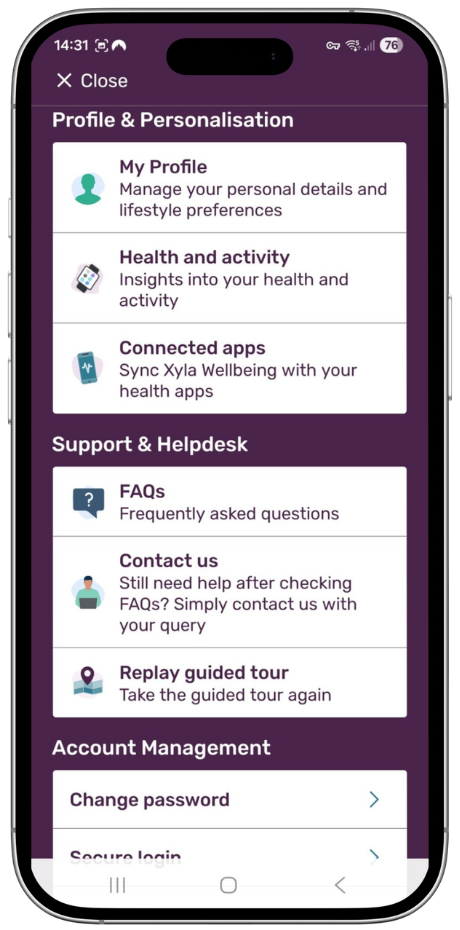
Settings are arranged in different sections.
Profile & Personalisation
- My Profile: View and edit personal details such as preferred name and phone number and add a picture of yourself if you wish.
- Health and activity: View statistics from the health data synchronised from your phone’s health app if you have connected it (see ‘connected apps’)
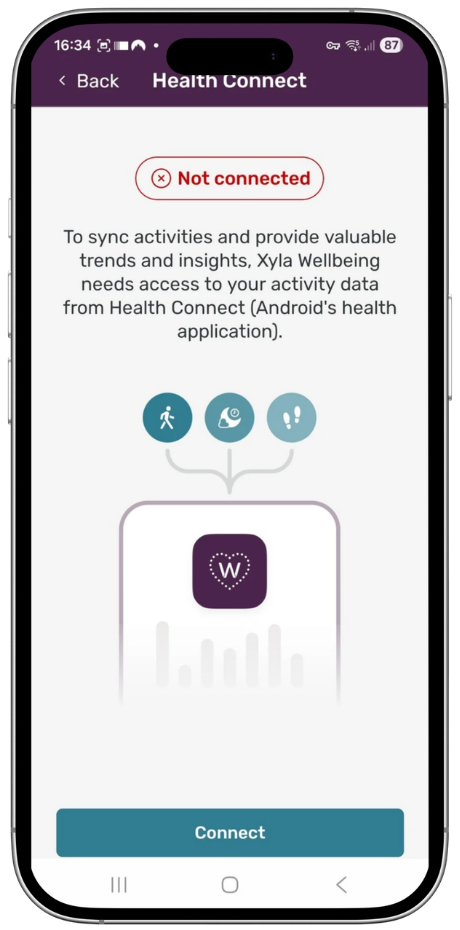
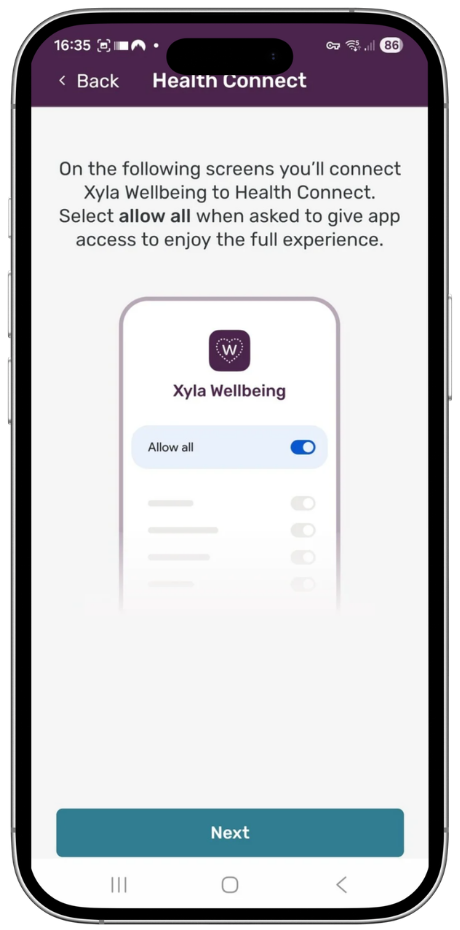
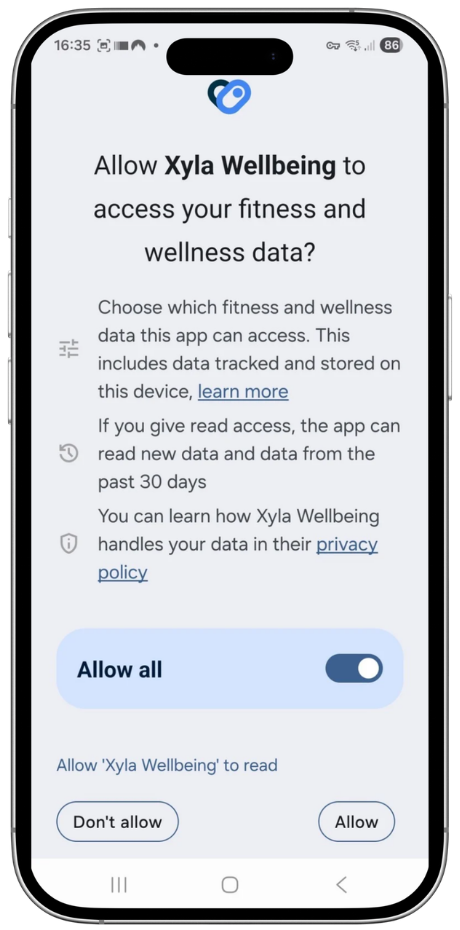
- Connected apps You can also synch your mobile phone with its in-built health tracker to automatically pull across your health readings, like steps, without manually logging it in the app. Simple instructions on how to do this are found in the main menu under ‘Connected apps’.
- For Apple phones the health tracker app is called ‘Apple Health’ and with Android phones it is ‘Health Connect’.
Support & Helpdesk
- FAQs – frequently asked questions
- Replay guided tour – View the guided tour of the app at any time.
- Support & Helpdesk
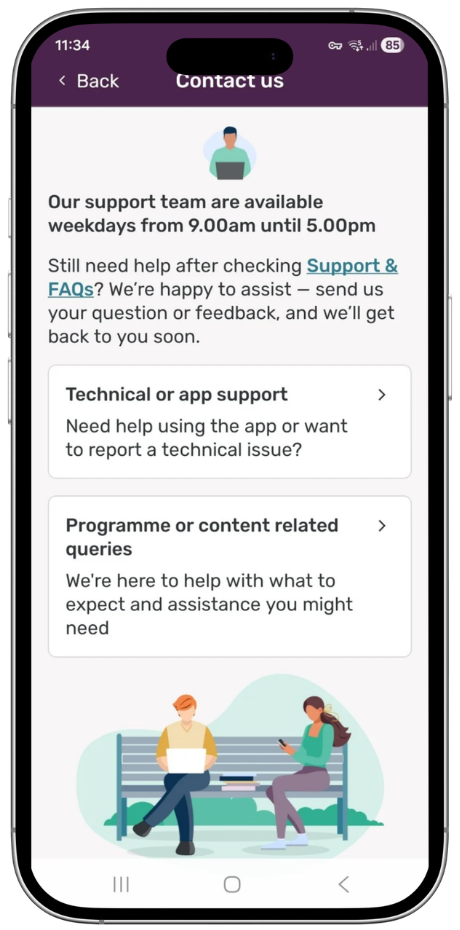
In the main menu, you will find a comprehensive, searchable list of Frequently Asked Questions (FAQs), as well as options to get in contact with someone from the programme team.
If you have any queries about the Xyla Wellbeing app, our friendly Application Support Team is always happy to help. Please send them an email at xyla-appsupport@xylaservices.com, and they will get back to you as soon as they can.
Account Management
- Change password
- Secure login: Update your mobile number securely if it has changed.
- Notifications: Switch individual notifications on/off.
- Accessibility settings: Details on how to activate accessibility features on your phone.
Privacy, Data & App information
- Request my data: You can request a copy of any data we hold about you.
- Programme details: An overview of the weight management programme
- Delete my account: You can request to have your account deleted
- Privacy policy
- Terms of use
- Software information